.png?width=200&height=40&name=matecat-logos_Tavola%20disegno%201%20copia%20(1).png)
What is DeepL?
DeepL is an advanced neural machine translation (NMT) engine available in 31 languages. It is specifically designed to provide high‑quality translation suggestions for post‑editing.
With DeepL, you can customize the translation output in several ways: by selecting the level of formality for the target language, by choosing the translation model to use, and by uploading your own glossary to ensure terminology consistency.
How to enable DeepL
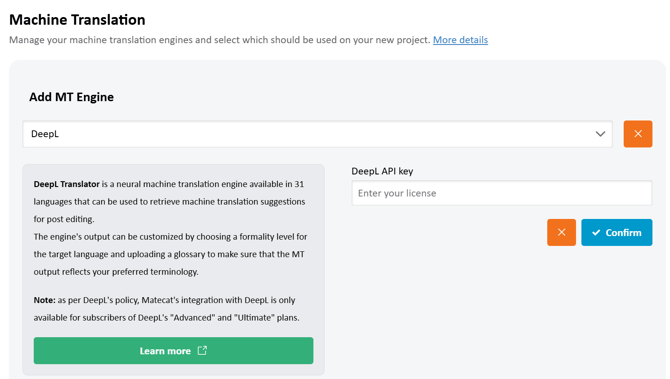
To enable DeepL on Matecat, open the Machine Translation tab in the project settings panel and select DeepL as your MT provider after clicking Add MT Engine. Enter your credentials, then click on Confirm.
To use DeepL, you need a valid API key associated with the Advanced or Ultimate plan.
Available options
Once DeepL is activated, click the Options button at the bottom of the panel to access its settings.
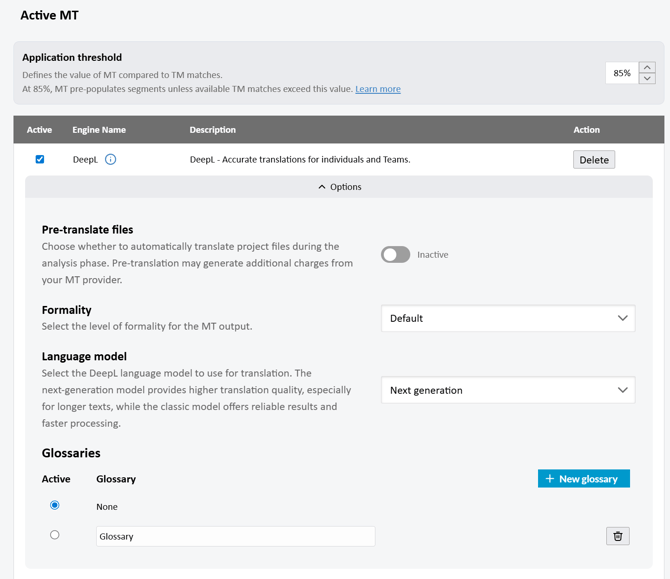
In this section, you can set the following options:
-
Pre‑translate files: this option is disabled by default. When enabled, Matecat will automatically pre-translate project files during the analysis phase. Keep in mind that pre-translation may generate additional charges from the MT provider.
-
Formality: select the desired level of formality for the translation output. You can choose between Default, Informal and Formal.
- Language model: choose which DeepL model to use, if the Next generation or the Old generation one.
- Glossaries: you can use a glossary to make sure that the machine translation output matches your preferred terminology. This allows you to have more control over the translation process and produce high-quality translations.
Using glossaries with DeepL
The glossary should be a .xlsx file consisting of two columns: the first column represents the source term and the second column signifies the associated translation.
Click here to download the glossary template.
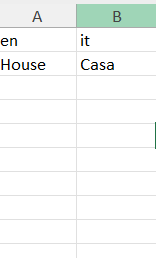
In order to create a glossary, click the New glossary button.
Matecat will ask you to enter a name for the glossary and choose an xlsx file to upload:
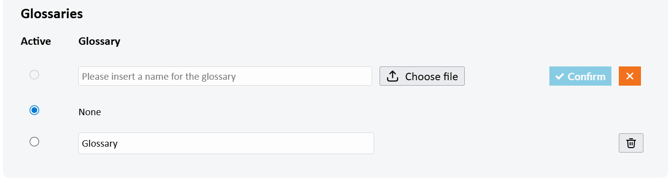
Once the name has been entered and the file chosen, the Confirm button will activate, click it to create the glossary.
If any glossaries are already available, they will be shown in the dedicated list.
Once the glossary has been uploaded, it will appear in the list of available glossaries for the project.
From this panel, you can activate a glossary by clicking the Active button below its name, or delete it at any time by clicking the bin icon.