Matecat uses tags for two reasons:
- preserve the structure of files and avoid conversion issues;
- guarantee that the target file has the same layout and formatting as the source file.
If a tag is omitted, duplicated, or misplaced, Matecat displays a warning on the QA icon.

For blocking issues, such as tag errors that may affect the generated file, the QA icon is displayed in red.


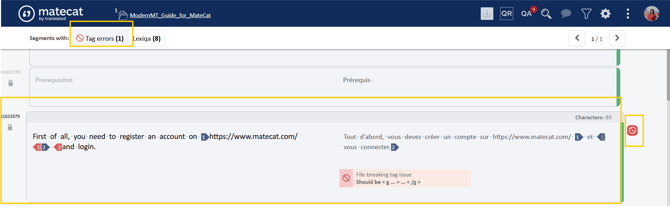
Click the QA icon to open the segment with issues.
Click Tag errors to check the segment with blocking issues.
Understanding tag issues
Matecat identifies three types of tag issues:
- Tag mismatch
- Tag order mismatch
- File breaking tag issue
1. Tag mismatch
Matecat alerts you when a tag from the source segment is missing from the target segment. This generates a tag mismatch and an error message.

The tag  is missing from the target segment.
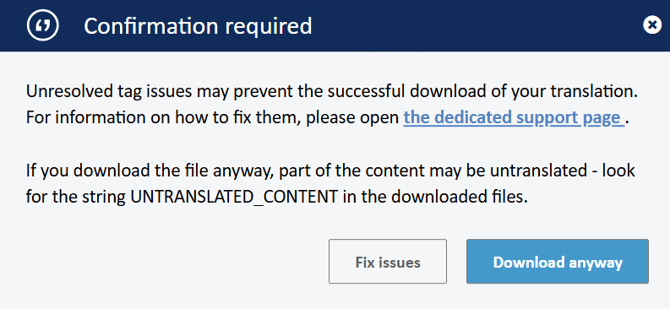
A tag mismatch needs to be fixed because the missing tag may cause untranslated content to be generated in the target file.;
2. Tag order mismatch
Matecat alerts you when tags in the target segment are placed in a different order from those in the source segment. A light orange warning appears below the target segment.

Tag order mismatches generally do not prevent you from downloading the file and do not necessarily cause formatting issues in the target file.
We recommend fixing tag order mismatches whenever possible. However, you may need to change the tag order when required by the grammar or conventions of the target language. In these cases, the warning can be left unresolved.
3. File breaking tag issue
Matecat alerts users when a closing tag is missing in the target segment.

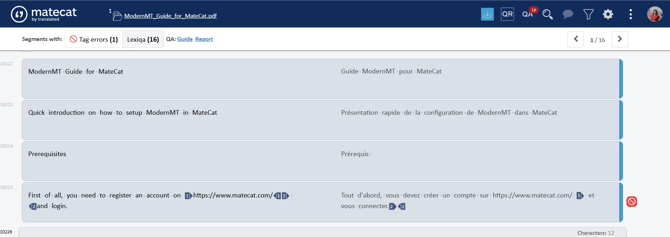
Warning message: File breaking tag issue. Should be <g...>....</g>.
These tag errors, if ignored, will generate untranslated content in the target file.
When you have blocking tag issues in a segment, a "Forbidden" icon will appear next to the target segment.
How to fix tag issues?
There are basically four ways to correct tag issues:
1. Place the cursor next to the location where the tag is missing and insert the < symbol or use the short cut Alt+t.
A window will open. Click on the tag you need to add to your translation.

2. Click on the tag in the source segment to select it, then drag and drop it into the target segment.

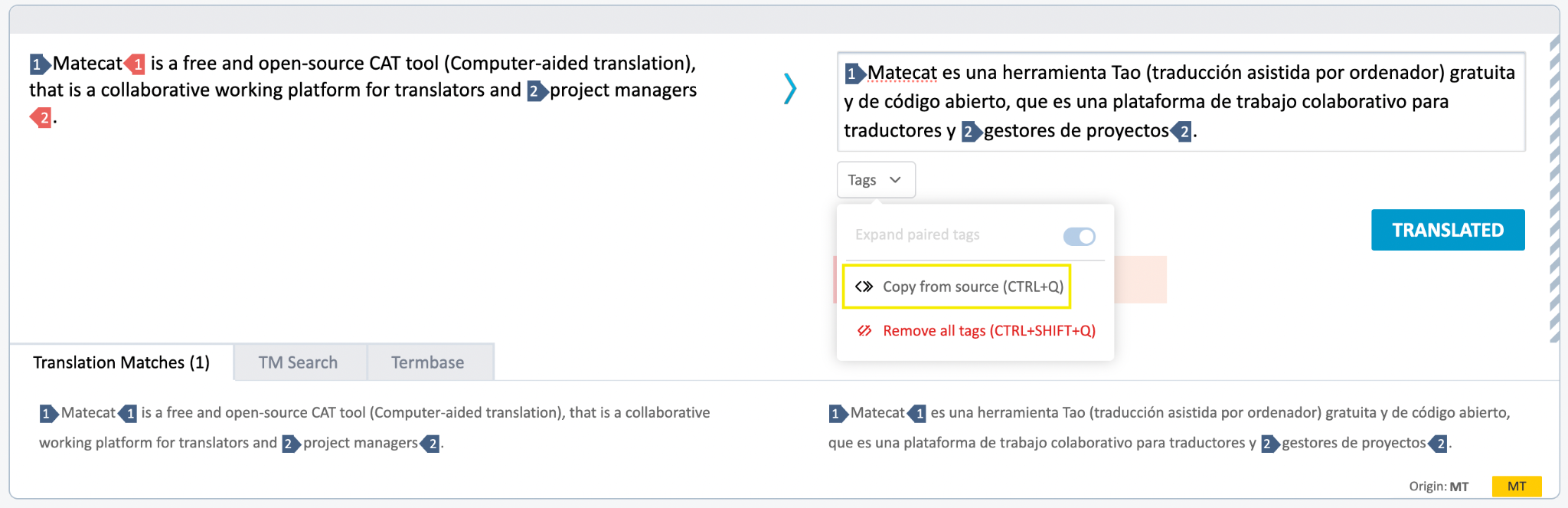
3. Copy tags from the source to the target segment using the Tags menu. The tags are added to the end of the target text in the same order as in the source.