
On the top right of your translation editor, click the magnifier icon to open the Search and Replace feature.

This feature allows you to search for specific patterns in source or target segments, find occurrences of word pairs in both the source and target simultaneously, and replace words or phrases in the target segments.
Refining your search
You can refine your search, flagging the box Match Case or Whole word.
-
Match Case makes it case-sensitive.
- Whole word excludes results where the search term is contained within another word.

Here you can find some examples:
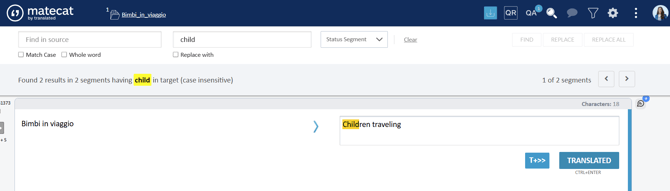
In this case one of the results provided for the word child is children.
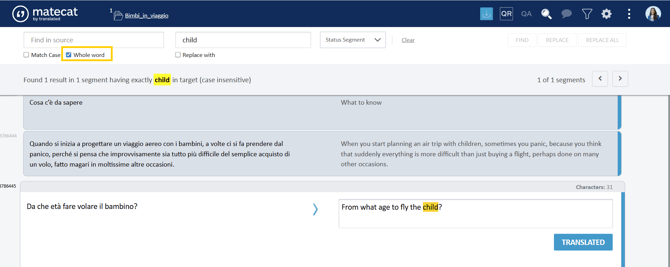
If you flag the option Whole word, the search provides only the occurrences of the word child (but not children).
You can refine your list, searching by segment status (New, Draft, Translated, or Approved). This way you will get results only from segments that match the status you choose.
Click on Segment status and choose which segments you want to apply the search to.
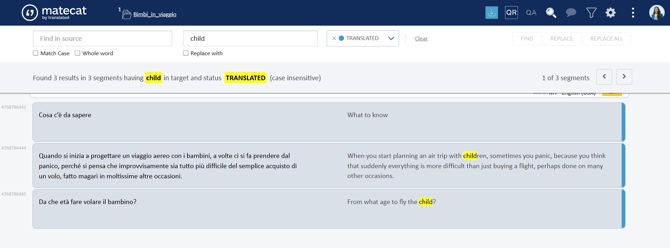
Replace
The last option you have on this panel is replacing words in the target using the REPLACE and REPLACE ALL button.

Notice that the replacement applies to all segments. In the translate mode, it changes the text and the segment status as well. So if you replace a term in a draft segment, you will notice that it will be changed and saved as translated.
When you use Replace All, a pop-up warns you that the modified segments will change status and asks whether you also want to apply the replacement to locked segments.
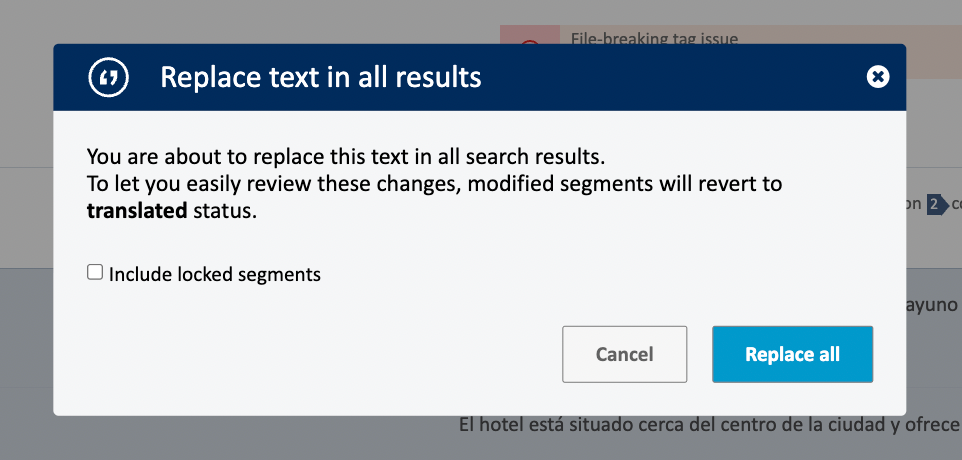
The status of modified segments depends on the workflow step you are currently working in:
- Translation: modified segments revert to Draft, so the translator can review and confirm the changes again.
- Revision 1: modified segments move to Translated (Blue) and must be approved again.
- Revision 2: modified segments move to Translated (Blue) and must be approved again.
This ensures that segments modified through Replace All are reviewed again rather than remaining in an already approved state.
The Quality Report (QR) continues to display the last version explicitly approved by the user. The status changes triggered by Replace All do not affect the version used by the Quality Report.
Search and replace in split jobs
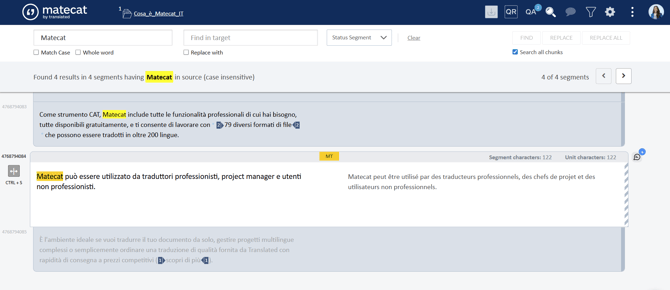
If you have a project that is split into more chunks, you have the possibility to apply the Search feature to a single chunk or to extend the search to the entire project.
You can flag the Search all chunks option and click on Find again.

In this case, you can navigate through the segments even if they are not included in your chunk, but you can't apply any change to them.
Replace All only applies the replacement to the chunk that is currently open. Selecting Search all chunks allows you to find matching segments across the project, but it does not extend Replace All to the other chunks.
If you need to replace a term across multiple chunks, you must open each chunk separately and run Replace All in each one.